Python
Start X Server
Starting in Fall 2026, Codio has been updated to not start the X display server until you try to connect to it the first time. So, before running your Python program, find the entry in the menu at the top of the Codio window to open the GUI viewer (sometimes it’ll be called “X Server” or “Virtual Desktop”) and click on it to open the GUI viewer, then leave it open while you run your code or tests.
Outline
Here is a basic outline of the steps to follow to complete this example.
- Clone Starter Code from GitHub
git clone <url> python- Run Project
cd python
python3 -m src- Install Tox
pip3 install tox- Check & Test Existing Project
python3 -m tox-
Confirm that project runs and has no style errors.
-
Create New GUI Classes. Continuously commit to Git as changes are made!
-
Update Main.py to use new GUI. This is just for testing purposes.
-
Add GUI Panel for TheChoco. You’ll do this on your own.
-
When complete, use Git to commit and push updated code.
git add .
git commit -m "Example Complete"
git push- On GitHub, create a release tag and submit URL to Canvas for grading.
Completed GUIs
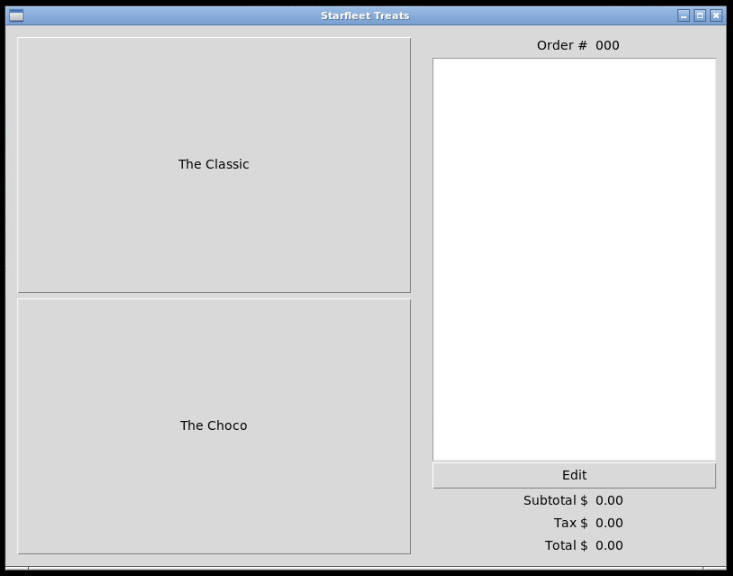
Main Window with Order Panel
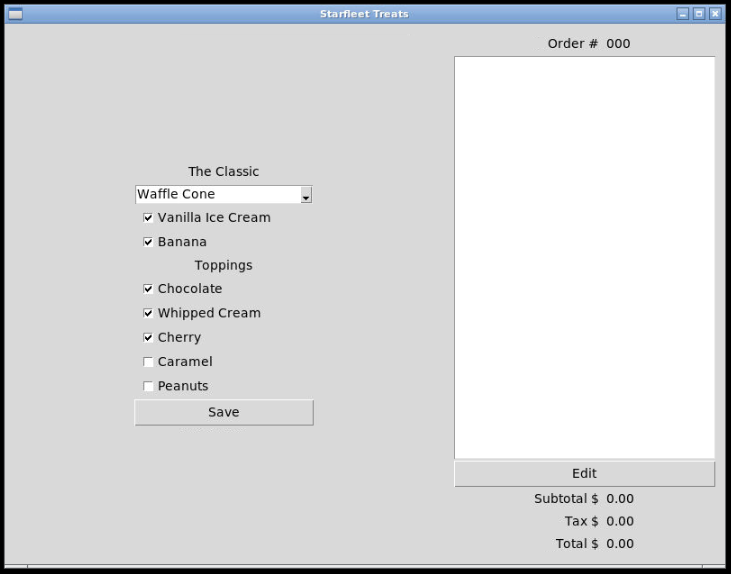
Main Window with Sundae Panel