Compiling and Running
Open folder in terminal
First, open your folder in VS Code and ensure the integrated terminal is displayed.
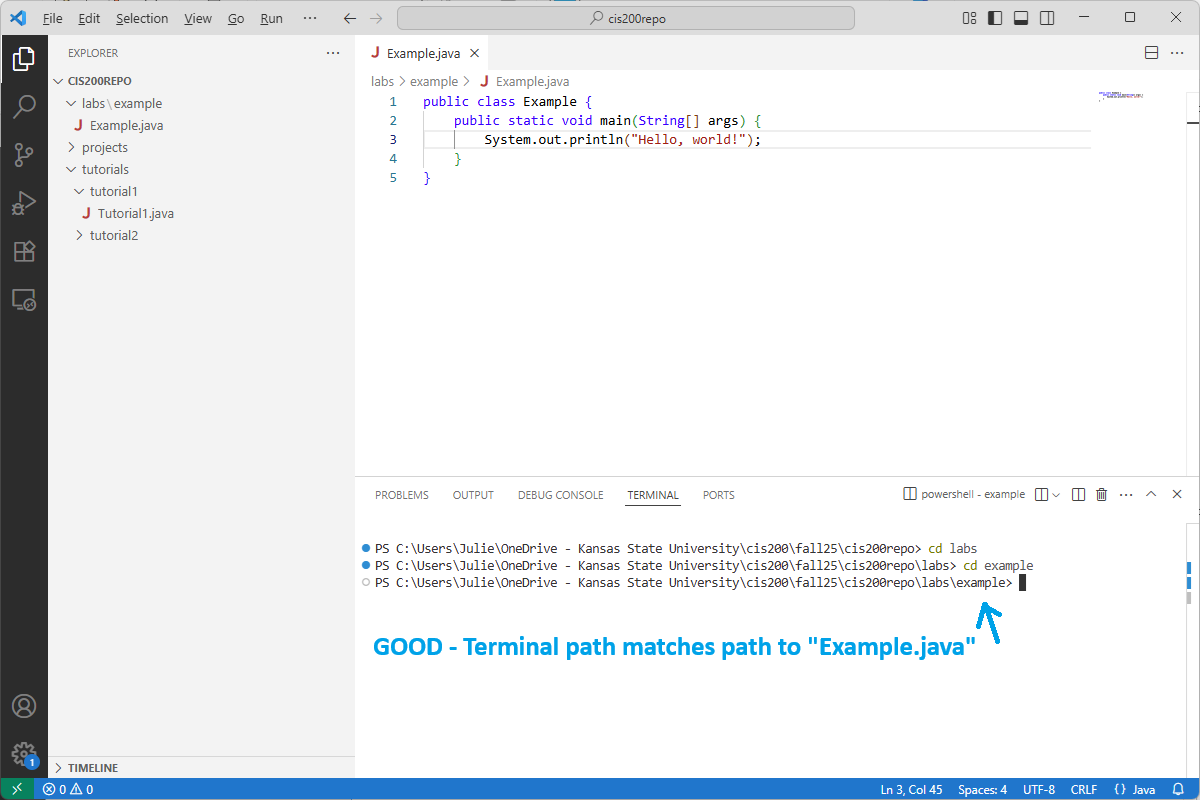
Next, make sure the path listed in the terminal matches the FULL path (including all subfolders!) to the file(s) you want to compile. You can do this either with the cd command or by right-clicking the correct subfolder in the solution explorer and choosing “Open in integrated terminal”.
Example
Suppose I want to compile my “Example.java” program:
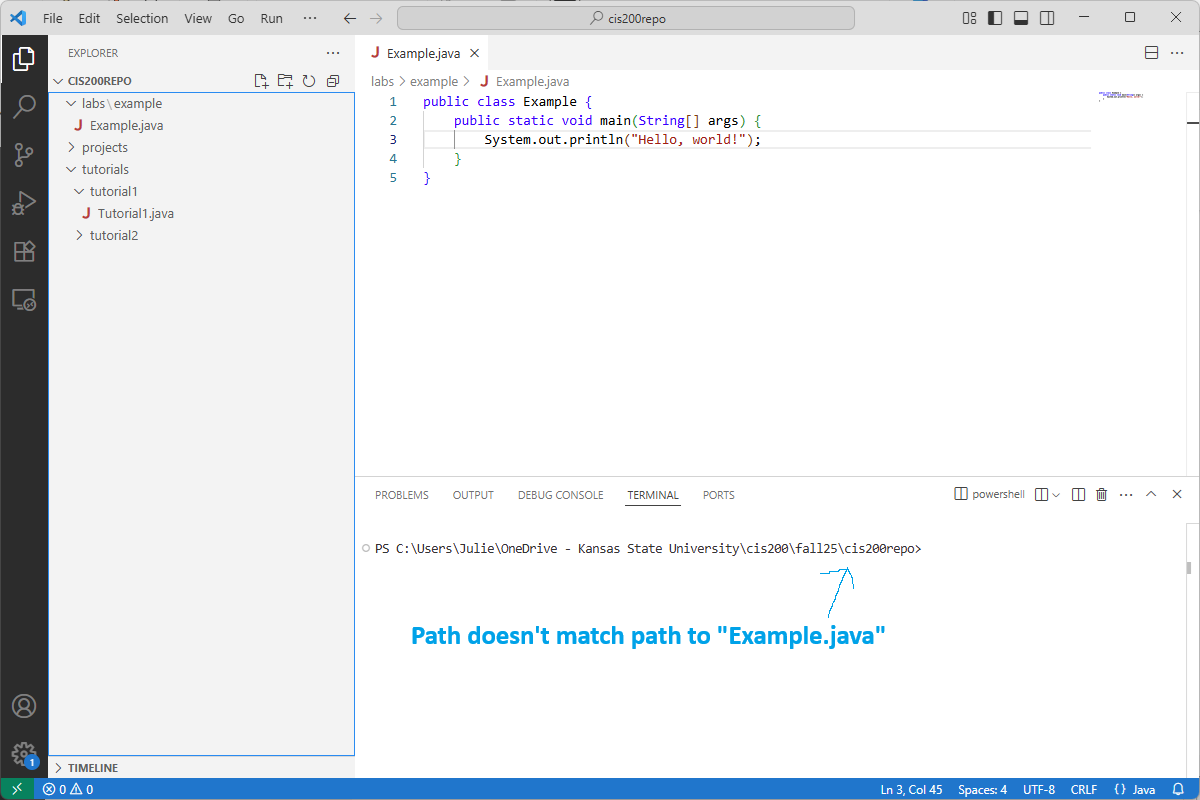
The current path listed in the terminal does NOT match the full path to “Example.java”, as it is missing the labs\example subfolders. I can use cd to change into those two subfolders like this:
Compile your program
To compile a one-file Java program, type in the integrated terminal:
javac Example.javaReplacing Example.java with the name of your Java file. If you get an error that the file is not found, double-check that:
- The path listed in the terminal matches the full path to the Java file
- You spelled the name of the file correctly, including capitalization
If your program compiled correctly, you should see the class file Example.class (or something similar to match the name of your Java file). If you made any mistakes in your program, the compiler will print error messages describing the problems.
If you want to compile a Java program that has several classes in the same folder, do this instead:
javac *.javaThis will compile ALL your classes and will generate class files for every .java file. (NOTE: this compilation command will only work if you have exactly one class that includes a main method in the current folder. We will discuss other compilation options for multiple files later in the semester.)
NOTE: terminal commands interact with the current saved version of a file, NOT with the version that appears in the text editor. If you make changes to a program and then compile it without saving, the compiler will not see any of your recent changes. Before compiling, be sure to save all your files (File-Save or Ctrl-S). Make sure none of the open file tabs have a solid circle next to the file name – this is an indication that they are unsaved.
Running your program
Suppose you just compiled your Example.java program and have the class file Example.class. To run your program, type:
java Examplein the terminal (again, after changing directories to the folder where Example.class is). If you compiled a program with several files, then use the name of the class file that contains the main method.