KS LEAPES

Kansas LEAPES (Learning, Exploration, and Application for Prospective Engineering Students) seeks to spark interest in science, technology, engineering, and mathematics (STEM) careers among 7th–12th grade students statewide. The KS LEAPES program operates a novel distributed STEM summer camp, with local camps hosted in schools across the state, offering program developed and led by K-State faculty.

Host a Camp

If you are interested in hosting a LEAPES site, please contact the Rural Education Center at Kansas State University.

Support Us!

The Rural Education Center is seeking grant and/ or philanthropic support so that future summer STEM camps can continue to build on this proven success—empowering students, strengthening schools, and ensuring that Kansas remains a place where young people dream big and achieve even bigger!

This website serves as a repository for the curriculum used in the KS LEAPES camps, which are released under a Creative Commons NA-NC-ShareAlike license.

Subsections of KS LEAPES

Introduction

Kansas LEAPES (Learning, Exploration, and Application for Prospective Engineering Students) is an innovative distributed STEM summer camp that seeks to spark interest in science, technology, engineering, and mathematics (STEM) careers among 7th–12th grade students statewide.

The primary goal of Project LEAPES is to engage students in awareness, exploration, and preparation activities related to careers in engineering, artificial intelligence, and computer science, all of which are critically important areas to national security.

Over the past four years, Project LEAPES equipped 120 teachers through professional development and welcomed an average of 400 middle school students each summer to its STEM camps taught by K-State professors of Robotics, Computer Science, and Aerospace Engineering. Students reported leaving camp with greater enthusiasm for STEM topics and a stronger belief that they could succeed in STEM fields. Teachers gained tools to keep the momentum going in their classrooms, and students left inspired to imagine themselves as the next generation of scientists, engineers, and innovators.

Initially funded by a three-year, $2.7 million U.S. Department of Defense grant, the camp continues to be offered through the dedicated efforts of Kansas State University’s Rural Education Center, Advancing Learning and Teaching Computer Science lab, and K-State Salina.

Rural Education Center Logo Rural Education Center Logo

Subsections of Introduction

Welcome

Camp Details

The KS-LEAPES summer camp uses a unique distributed model - schools across the state of Kansas host local camps, offering a curriculum developed and led by K-State faculty. Camp activities include a mixture of hands-on, asynchronous activities, virtual tours of research and manfacturing facilties, and synchronous discussions with K-State faculty, industry leaders, and more!

Important Dates

June 3, 9:00am-3:00pm Teacher PD Session

June 8-11, 9:00am-12:00pm Computer Science Week

June 15-18, 9:00am-12:00pm Week 2: Robotics

Computer Science

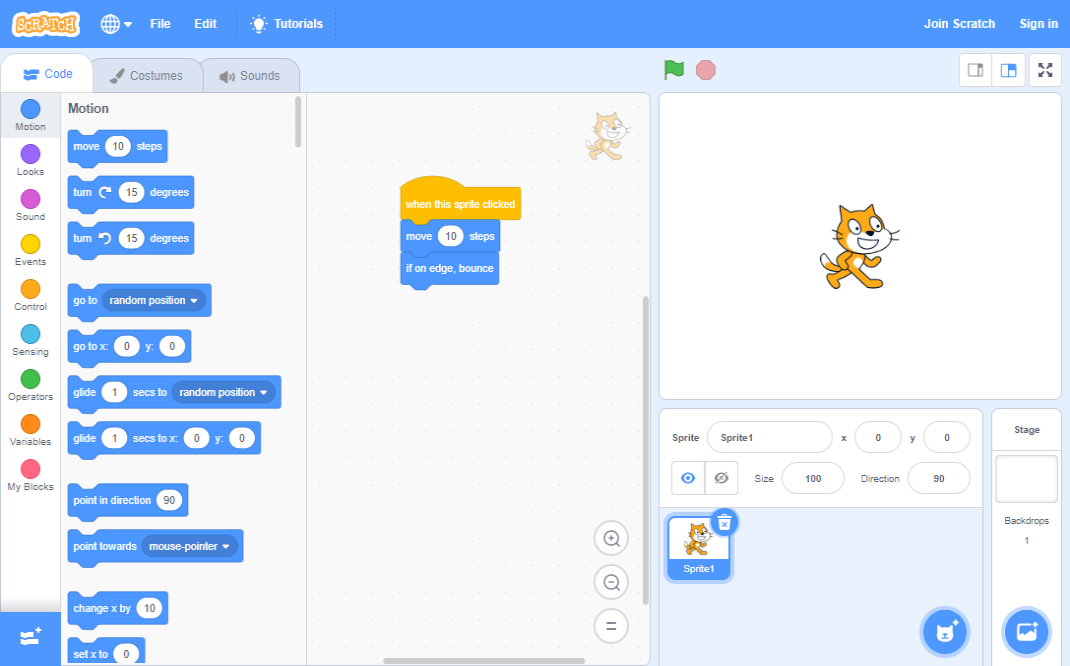
In this week we use the Scratch programming environment. Scratch uses block-based programming to enable student to create and share stories, games, and animations while learning the fundamentals of computer science.

The Scratch Programming Environment The Scratch Programming Environment

This week’s sessions will be led by Dr. Nathan Bean of the Kansas State University Department of Computer Science.

Subsections of Computer Science

Day 3

Activity 1: Drone Movement

Builds off the drone state machine from Day 2

Drone Movement YouTube Video

Lateral Drone Movement YouTube Video

Rotational Drone Movement YouTube Video

Drone Art

Activity 2: Models and Simulation Part I

Tutorial YouTube Video

Virtual Beocat Tour

Visit https://kstate.designori.net/ and select “Beocat Supercomputer”

Activity 3: Models & Simulations Part II

YouTube Video

Activity 4: Graphing Mathematical Functions

Starter Project

Tutorial YouTube Video

Activity 5: Q&A with Dr. Bean (on Zoom)

CS Extras

Scrolling Shooter Tutorial

Starter Project

Part 1 - P38 Animation YouTube Video

Part 2 - P38 Movement YouTube Video

Part 3 - Player Bullets YouTube Video

Part 4 - Cloning Player Bullets YouTube Video

Part 5 - Adding an Enemy Plane YouTube Video

Part 6 - Bullet Sounds YouTube Video

Part 7 - Player/Enemy Collisions YouTube Video

Part 8 - Player Explosions YouTube Video

Part 9 - Enemy Explosions YouTube Video

Part 10 - Player Lives YouTube Video

Part 11 - Islands in the Sea YouTube Video

Part 12 - Evasive Maneuvers YouTube Video

Robotics

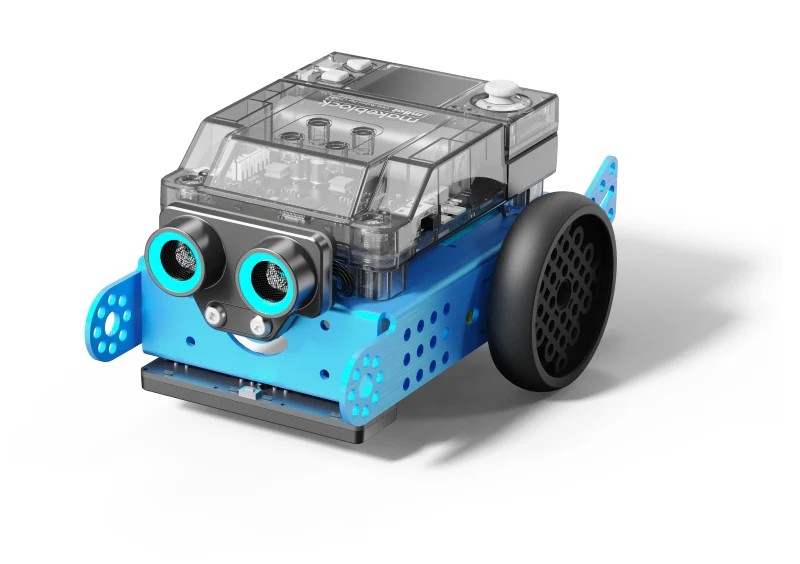
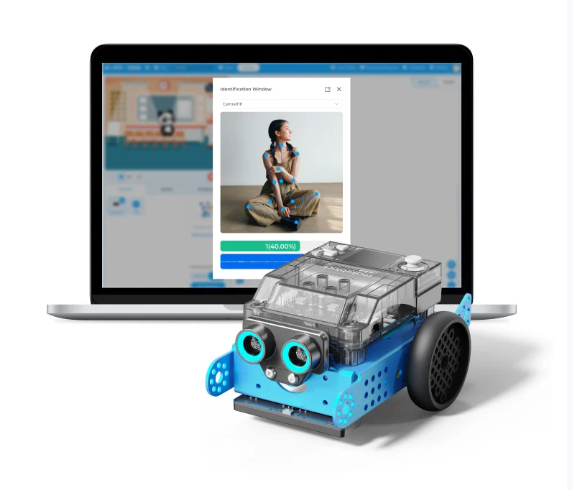
Ready to put your Scratch skills to work on a real robot? We will program an mBot2 from Makeblock to move, dodge obstacles, follow lines, and tackle hands-on challenges — all with the same drag-and-drop coding blocks you already know.

An assembled mBot2 robot An assembled mBot2 robot

Subsections of Robotics

Day 1

Activity 0: Let’s BUILD! 🚧

If you have unbuilt mBots, follow the instructions included with the kit to build them now.

Activity 1: Let’s ROLL! 🤖

  • Are you new to mBot or need a refresher? Start here! Testing mBot YouTube Video

Activity 2: Let’s CODE! 💻

Activity 3: Let’s MOVE! ⚙️

Android and Apple Apps

Let’s go METRIC SYSTEM! 📏

Resources

Already an mBot expert? Move on to Day 2 or Day 3.

Day 2

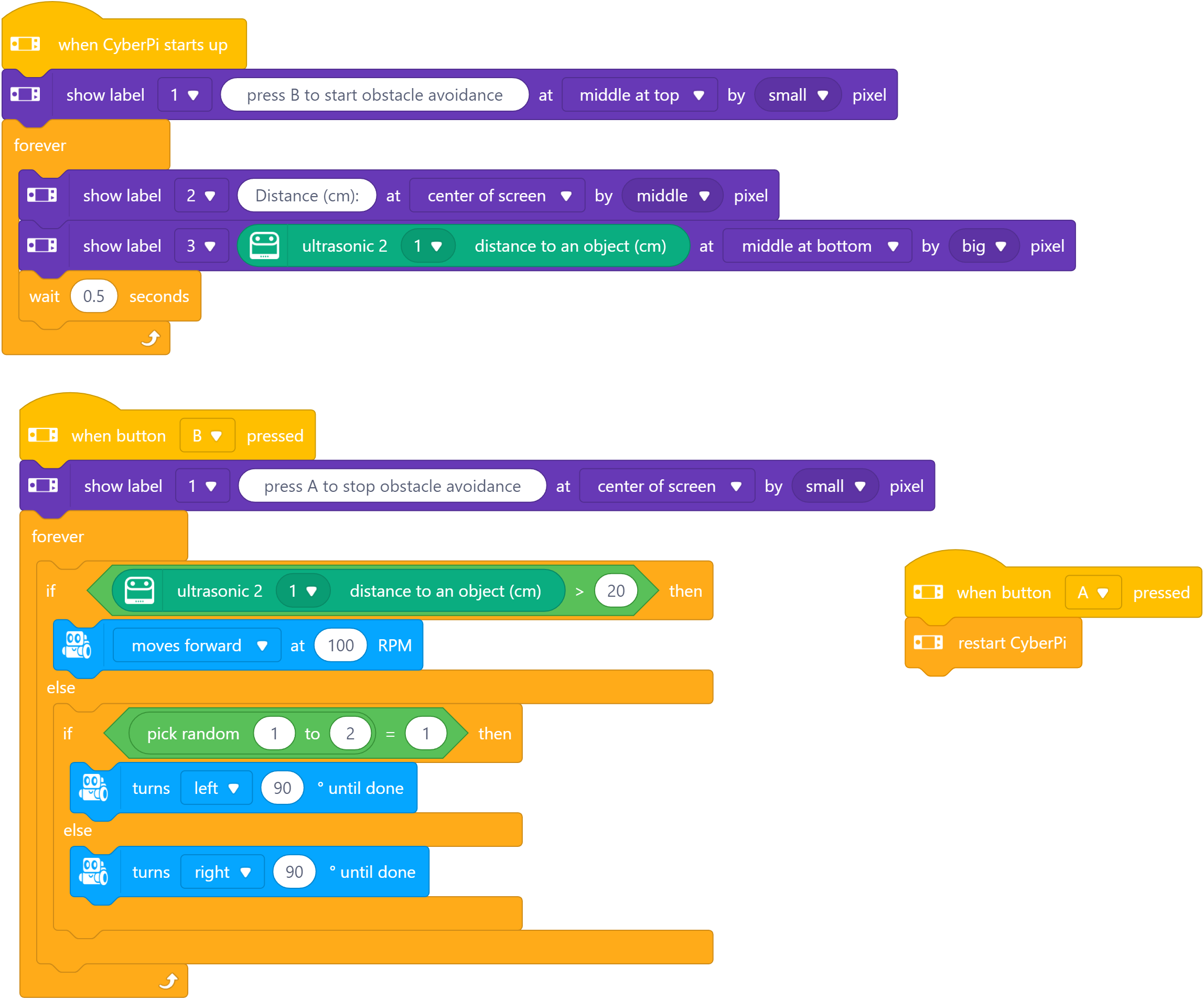
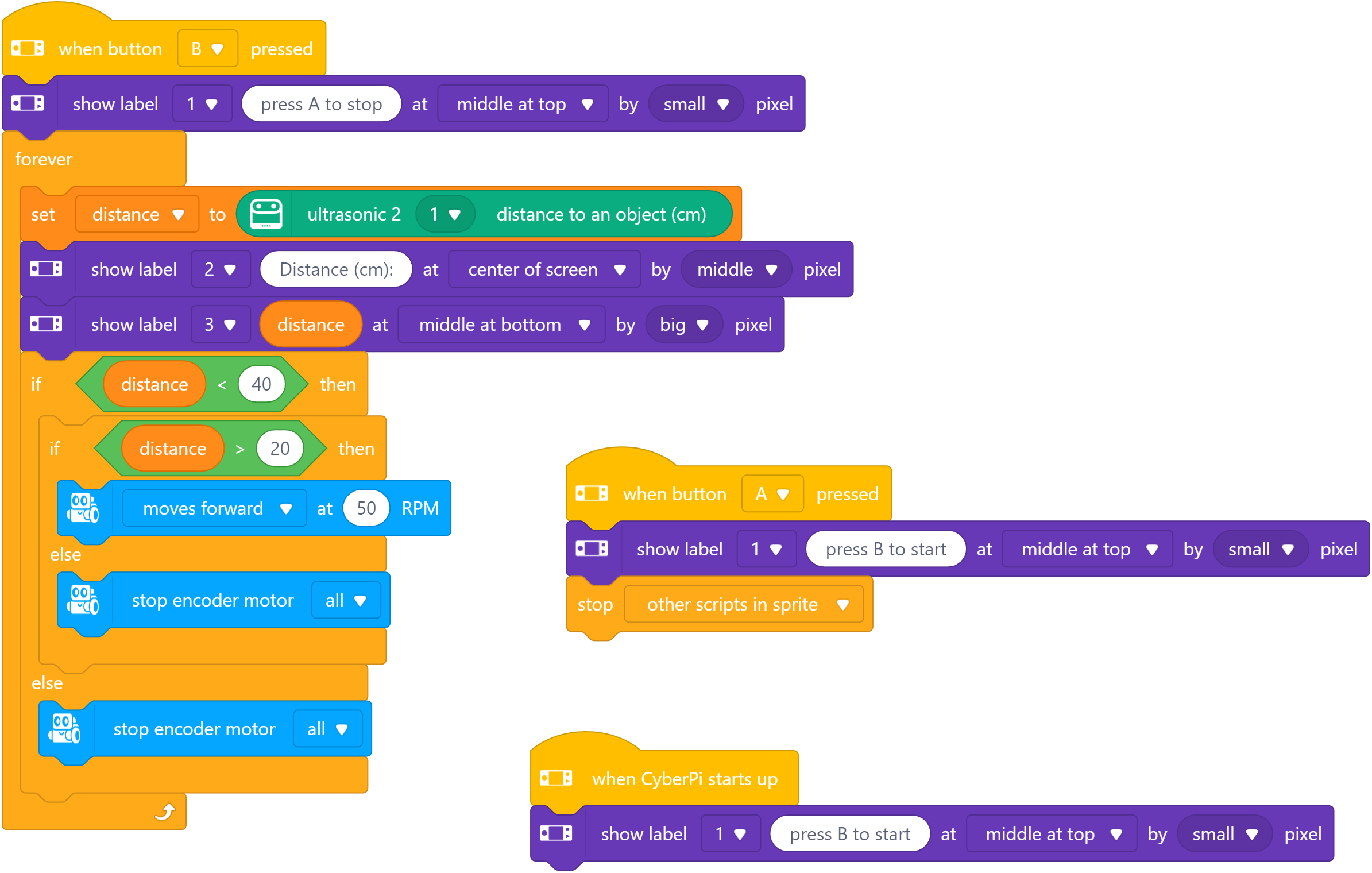
Activity 1: Obstacle Avoidance

Obstacle Avoidance Obstacle Avoidance

Activity 2: Object Follow

Object Follow Object Follow

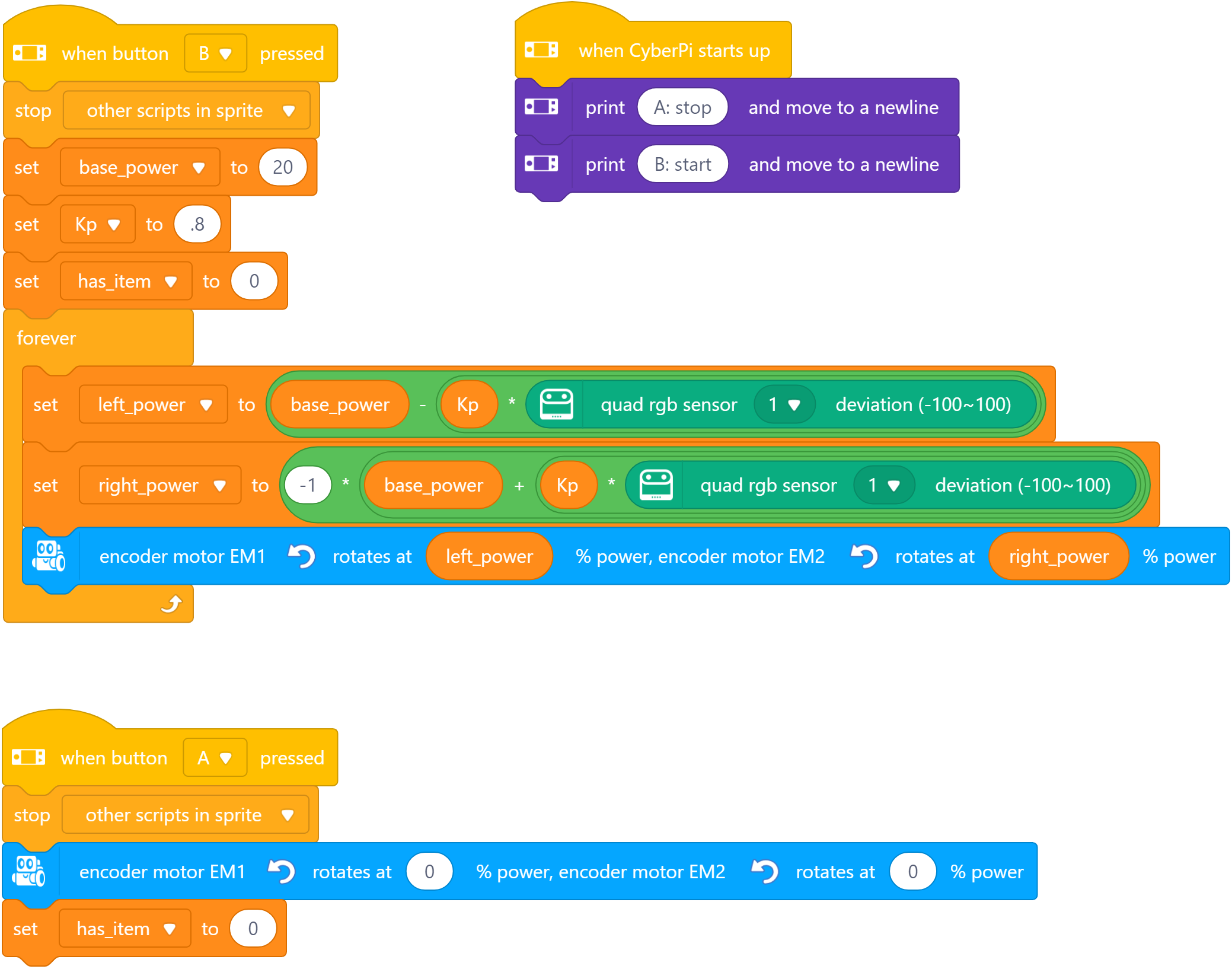
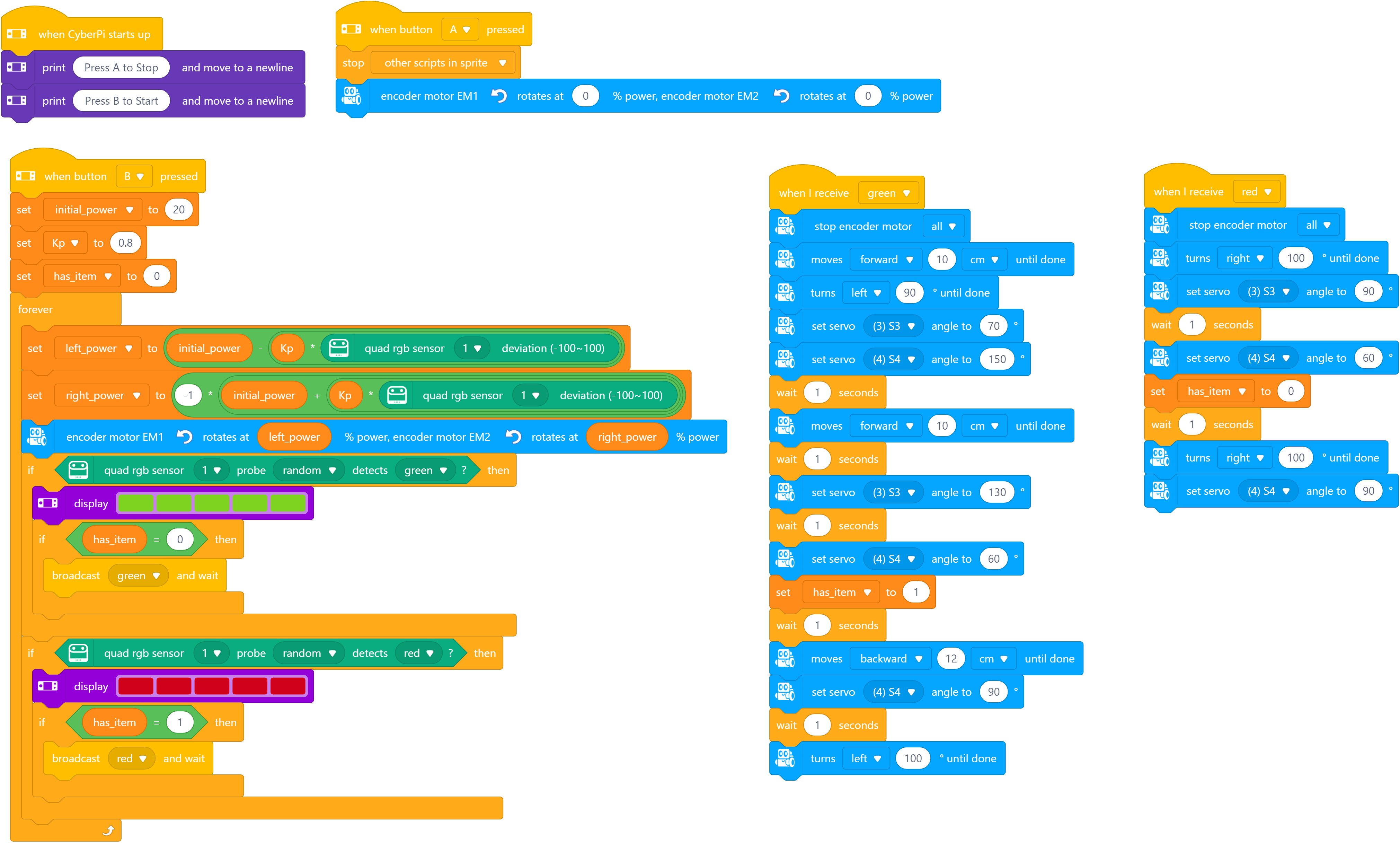
Activity 3: Line Follow

Line Follow Line Follow

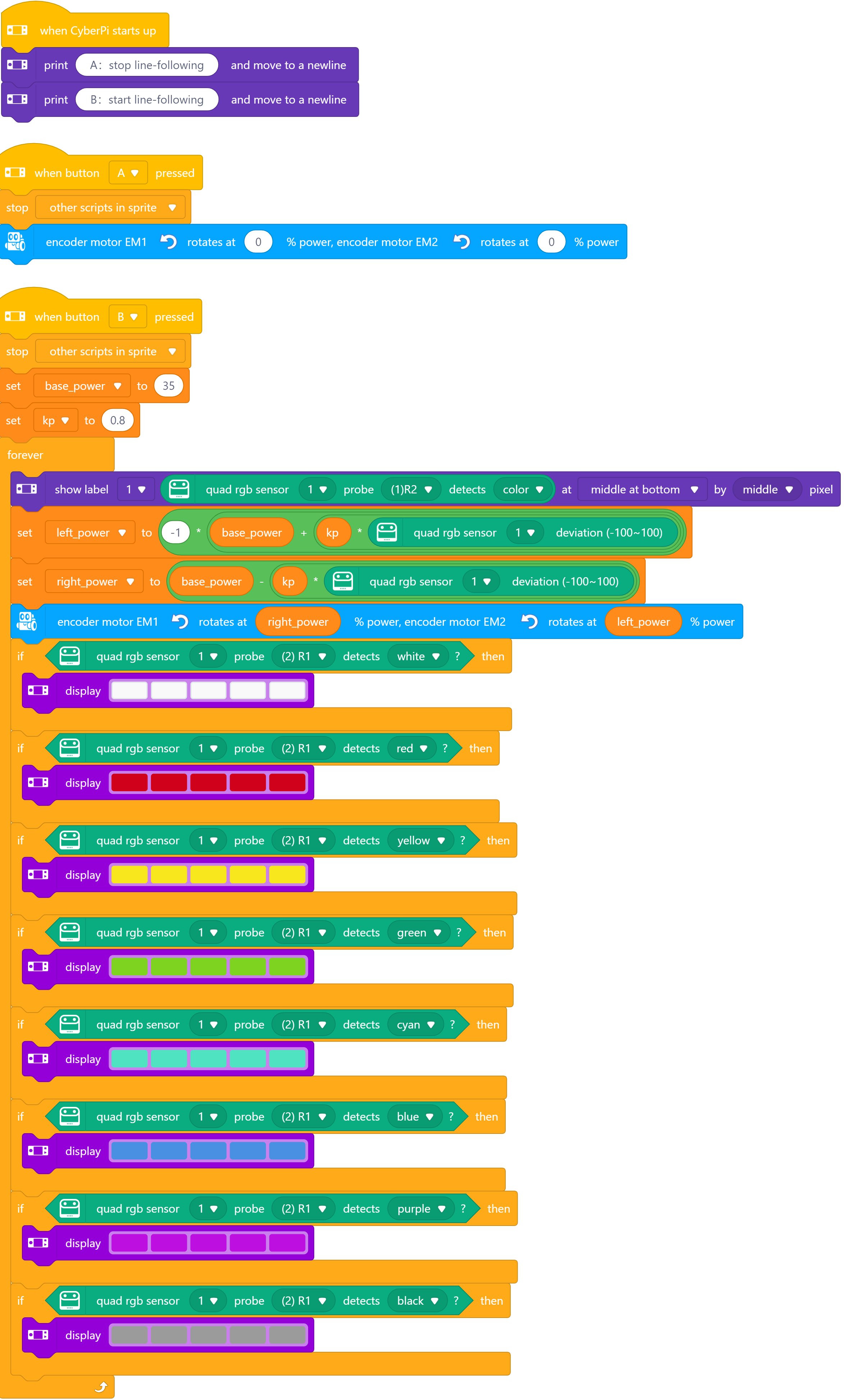
Activity 4: Line Following with LEDs

  • Line Following and change LEDs Line Following with LEDs Line Following with LEDs

Day 3

Virtual Aviation Hangar Tour

Christmas in June???

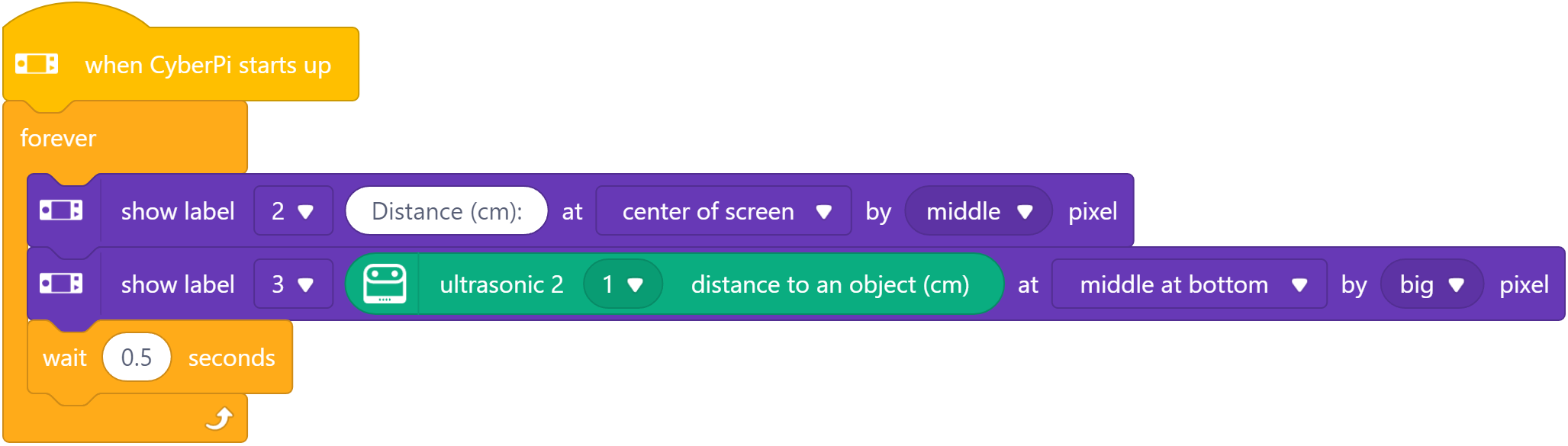
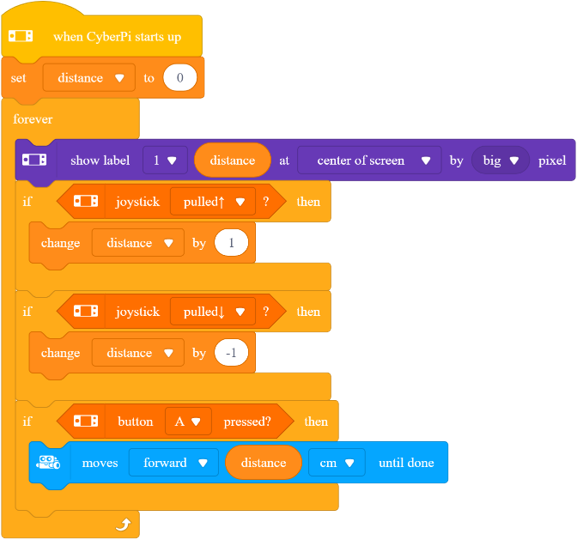
Activity 1: Measure Distance

  • Measure distance Measure Distance Measure Distance

Activity 2: Move Distance

  • Move distance Move Distance Move Distance

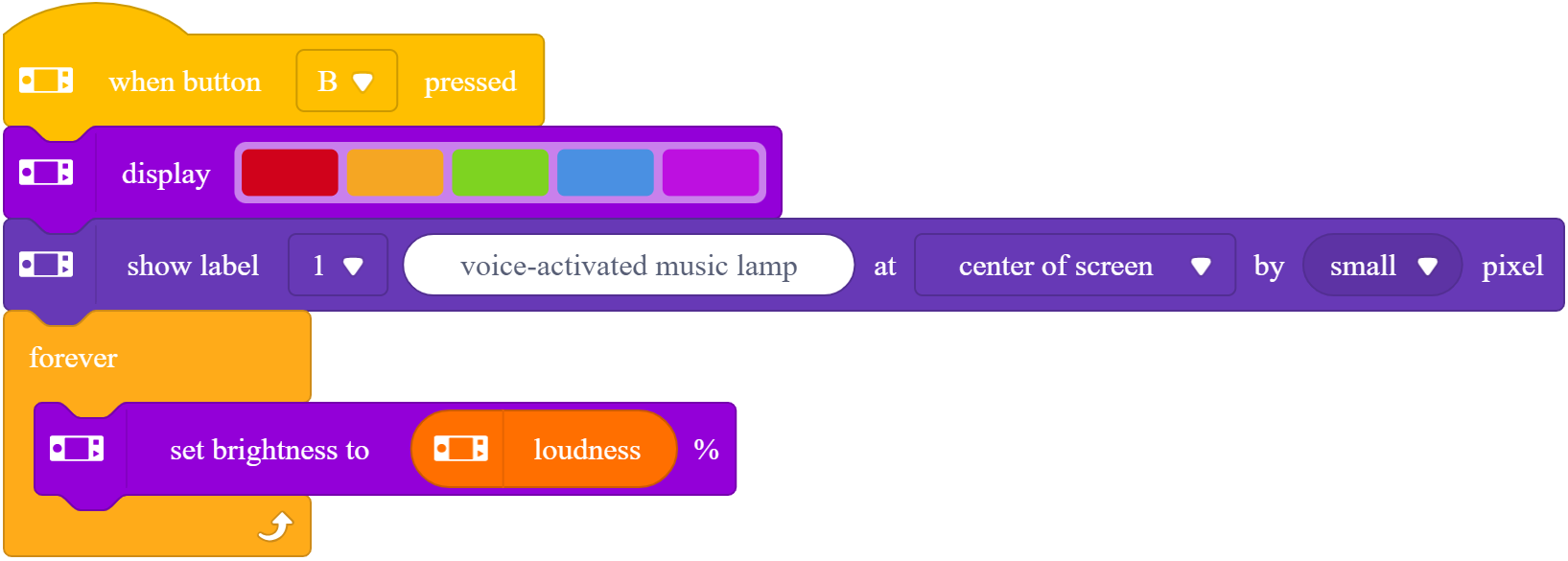
Activity 3: Did you hear that?

  • Sound Reaction Sound Reaction Sound Reaction

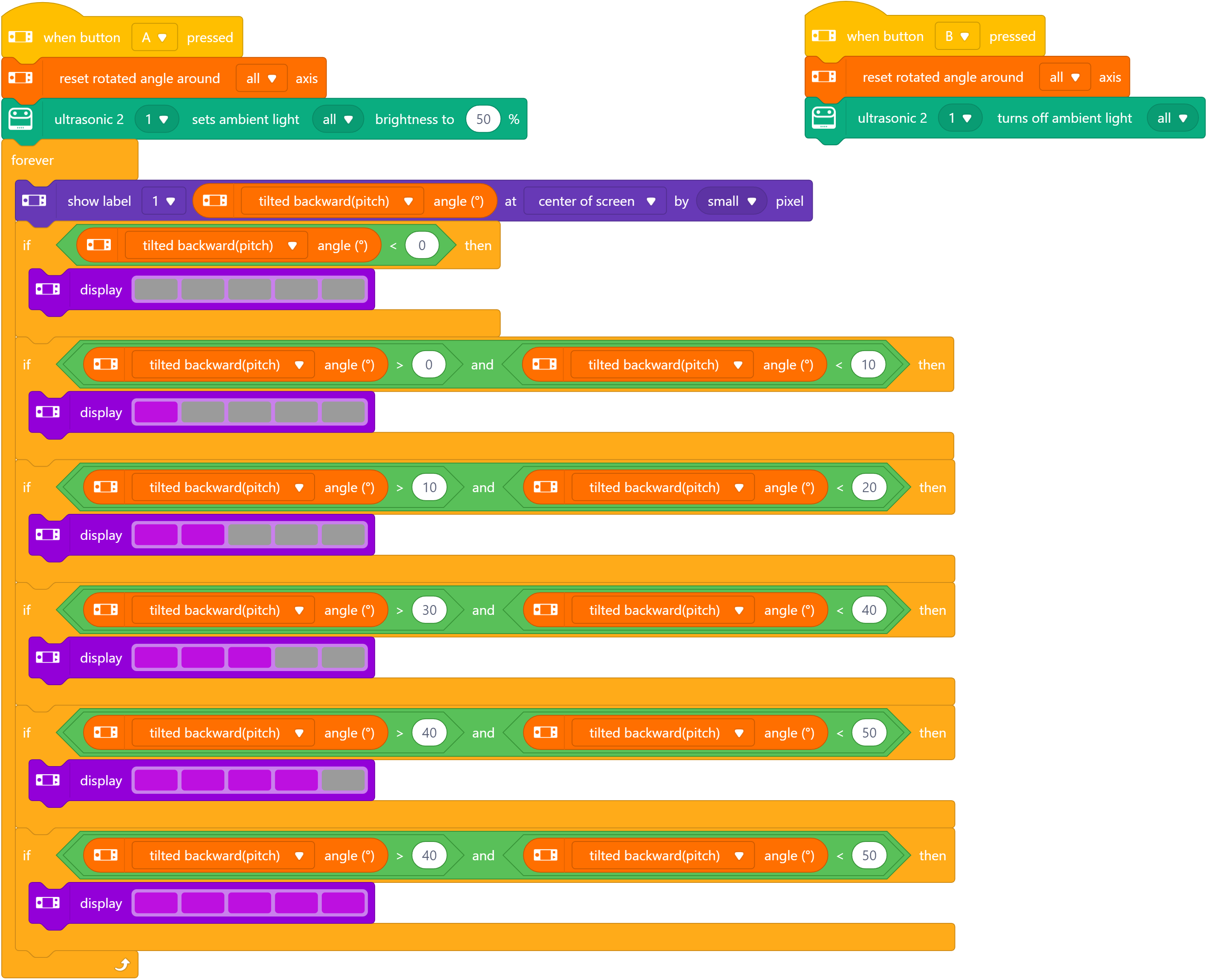
Activity 4: Angle Indicator

  • Build this Angle Indicator Angle Indicator Angle Indicator

Remote Control

Teleop Control

Create a teleoperation control panel (remote control) for the mBot

Resources

Robot Arm Activities

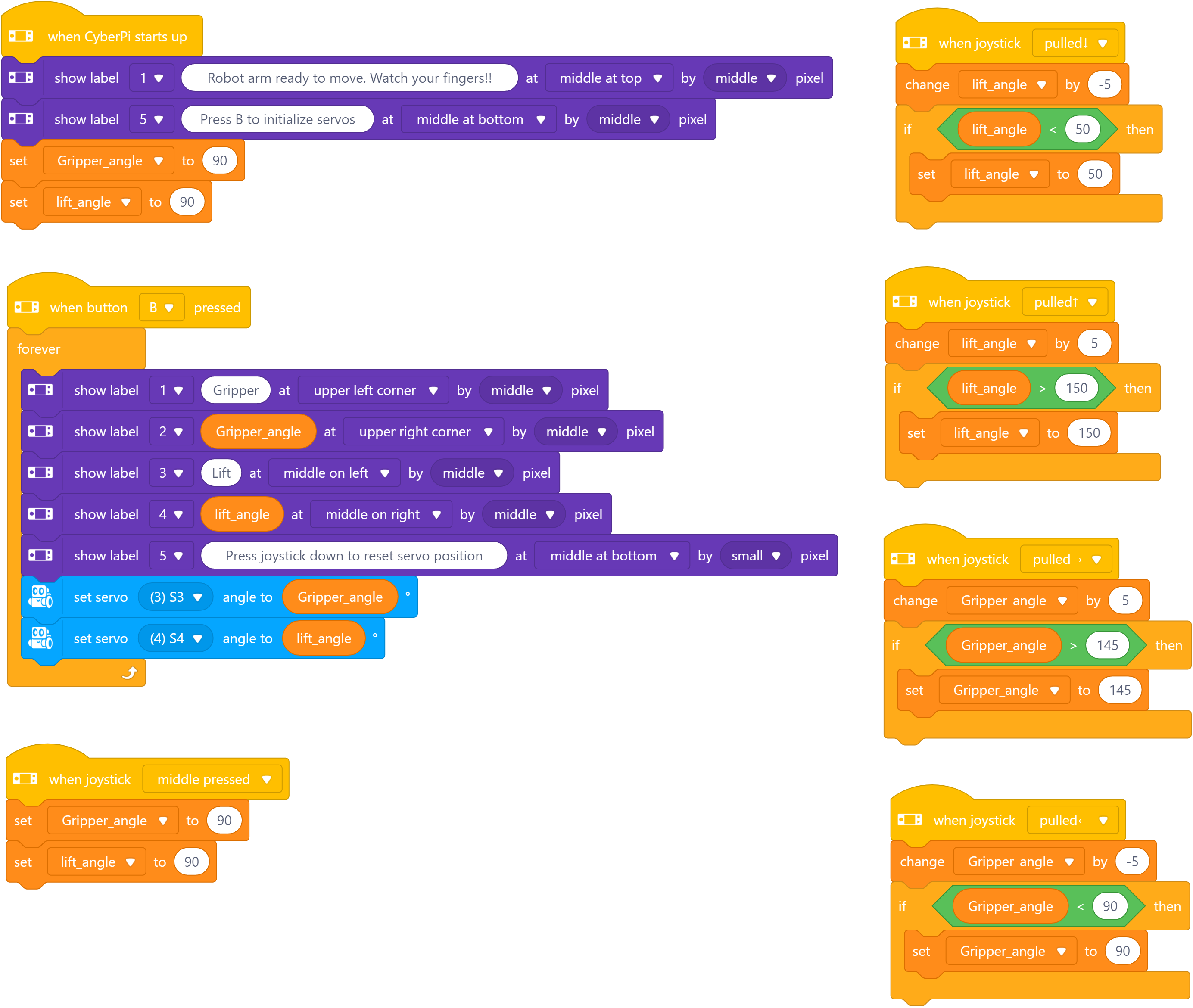
Activity 1: Robot Arm (if you have it)

Robot Arm Robot Arm

Activity 2: Color Line Follow

  • Color Line Follow - uses robot arm but you can skip that part YouTube Video

Color Line Follow Color Line Follow

Computer Science Extra

Ready to put your Scratch skills to the test? We will program a bunch of advanced puzzles like Pac-Man AI, Bubble Sort, and smart pathfinding path algorithms. You’ll tackle hands-on challenges to make sprites navigate mazes, sort data visually, and dodge ghosts — all with the same drag-and-drop coding blocks you already know.

The Scratch Programming Environment The Scratch Programming Environment

Subsections of Computer Science Extra

Data Science

Learn the basic concepts of data science and machine learning techniques through analyzing weather data.

  • Time: 60 - 120 minutes+
  • Age: Middle School and Up

Getting Started

Use the link below to open the starter project in Google Colab:

Open In Colab Open In Colab

Once open, complete a bit of additional configuration:

  • Run the code block at the top of the file to clone the repository and install the required libraries.
  • Remember that all Python commands must be run within code blocks and not the terminal. See the example included in the starter notebook.

The Lesson

The lesson itself is broken into several parts, linked below or in the side menu.

Subsections of Data Science

Gather Data

Video Walkthrough

YouTube Video

Resources

Teacher Notes

You can expand upon this section by linking it to discussions around local weather patterns or a larger module on the climate and weather in general. Students could be encouraged to collect their own weather data for a time period and use that data in this activity (with a bit of formatting help). While this activity is rooted in weather data, the same basic process can be used to analyze data of all types.

Clean Data

Video Walkthrough

YouTube Video

Resources

Teacher Notes

When doing this as part of an outreach activity, often this section is just a discussion and the full clean_data.py script is provided to students so they can quickly clean their raw data and move ahead to the next part. However, this can easily be expanded to a larger activity to actually build and test the clean_data.py script or perform additional data cleaning processes in a spreadsheet program.

Also, it is worth noting that the clean_data.py script as provided has a commented out line that does not process any missing data (denoted by an "M" in the Kansas Mesonet data) - that will be handled later in the lesson when it becomes an issue.

Graph Data

Video Walkthrough

YouTube Video

Resources

Teacher Notes

This section is the main interactive part of the lesson. Students should be given plenty of time to type in the code to load the data and create at least the first graph of the data. Depending on time and interest, the activity can slowly shift from having students write the code to having students follow along with the example solution to add more complexity to the graphs and answer the underlying questions posed at the beginning of the lesson.

Machine Learning

Video Walkthrough

YouTube Video

Resources

Teacher Notes

This section is mainly a deeper demonstration of some machine learning concepts and models that can be used in Python. The goal is to use the students’ current understanding of data science concepts and expand upon that using some more advanced techniques. The actual techniques presented here are mostly for demonstration purposes and aren’t really meant to be statistically valid for the input data (though they do produce some interesting results nonetheless). AI coding tools are a great way to give students the power to explore this data in more detail if they are available (most of the model solution code in this section was generated using an AI tool).

Teacher Guide

A STEM outreach activity using data science and machine learning techniques to analyze weather data.

  • Time: 60 - 120 minutes+
  • Age: Middle School and Up

Teacher Introduction Video

YouTube Video

Starter Code

The starter code can be found on GitHub. This repository is a template that can be easily forked by students or teachers to their own accounts.

The files can also be downloaded as ZIP file from the 1.0 Release and then redistributed through a course LMS or other process.

Teacher Setup

For students to follow along with this activity, they need access to system with Python and Jupyter Notebooks installed and available. There are many possible configurations that work, which are discussed below. If you have questions or need assistance setting things up, reach out to altcs AT ksu DOT edu and we’ll do our best to help!

Simple - Local Installation

The simplest setup is to have Python and Visual Studio Code installed on the system locally. Then, within Visual Studio Code, install the Python and Jupyter extensions. If the folder containing the starter files are opened in Visual Studio Code, you should be prompted to install those extensions if they aren’t already installed.

Devcontainers and GitHub Codespaces

The starter files also contain a .devcontainer folder that can be used to create a local [Development Container] using Docker, or a cloud development environment using GitHub Codespaces. That environment will contain the Python installation and handle installing the required extensions and libraries. Students can create their own copies of the starter code using the template repository on GitHub.

Codio

The Codio platform supports Jupyter Notebooks and could be used to deliver this lesson. Teachers will need to configure the lesson in Codio for students to use.

Google Colab

Google Colab is another possible option for students to engage with this lesson online. Students can start by clicking on the link below to open the starter file in Google Colab (the same link can be found on GitHub).

Open In Colab Open In Colab

It requires a bit of additional configuration:

  • Run the code block at the top of the file to clone the repository and install the required libraries.
  • Remember that all Python commands must be run within code blocks and not the terminal. See the example included in the starter notebook.

Model Solution

The starter repository contains a solution folder that contains the intended model solution at the end of the activity. Since this activity is meant to be exploratory in nature, it can be helpful to give students an option to either write the code themselves or follow along with a model solution and make changes to the existing code. Teachers may choose to remove that folder if they redistribute these materials.